

TRIMUI Smart PRO & PRO-S Handheld Console CrossMix OS Guide
Know your way around the Trimui Smart Pro
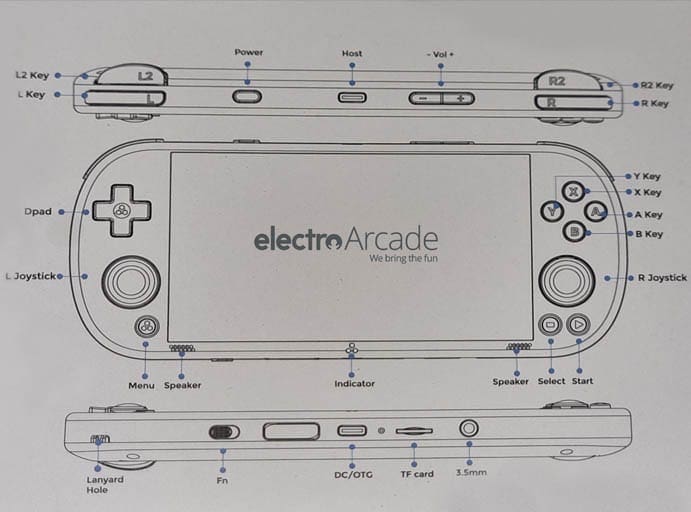
This guide covers both the TrimUI Smart Pro and the TrimUI Smart Pro S. Most of the guide applies to both devices. Sections marked Smart Pro only or Smart Pro-S only cover differences specific to that model.
Both devices run Linux with RetroArch built in. Neither requires Android setup or manual emulator installation. The optional CrossMix OS card adds a curated game library and enhanced interface on top of the base OS — instructions throughout this guide assume CrossMix is installed.
1. Getting Started
What’s in the Box
Both models include the console and a USB-A to USB-C cable. No charging brick is included — use a standard 5V phone charger. No game card is included — the console boots into the OS with no games loaded unless you add a CrossMix card or supply your own ROMs.
CrossMix OS Card
If you purchased a CrossMix card from Electro Arcade, it ships tested and ready to play. Insert the card, power on, and you’re in. No setup required.
Without a CrossMix card the console boots into the stock Linux OS. You can add your own ROMs via the file manager or FTP once connected to Wi-Fi.
CrossMix cards are available separately:
- CrossMix OS for TrimUI Smart Pro — $55 — 17,000+ titles across 50+ systems
- CrossMix OS for TrimUI Smart Pro S — $68 — 15,000+ titles across 55 systems, 100+ emulators
First Boot — CrossMix Card Setup
Powering On and Off
- Power on — hold the Power button for 2–3 seconds
- Power off — hold the Power button until the power menu appears, hover over Yes, press A
- Sleep — short press the Power button. Press again to wake
- Force close a frozen game — hold Menu + Power together for 3 seconds
- Hard reset — if the entire system is unresponsive, hold Power for 8–10 seconds
Charging
Both models use a USB-C charge port. Use a standard 5V/1A–3A charger. Do not use a fast charger or PD (Power Delivery) charger — dynamic voltage can damage the charging hardware. The TrimUI logo lights up red while charging.
2. Controls and Layout
Button Reference — Both Models
- A — confirm / launch
- B — back / cancel
- X / Y — varies by game and emulator
- Menu button (bottom left) — opens in-game menu when inside a game; opens search from the main screen
- Power button (top left) — power on/off and sleep
- Volume buttons (top) — volume adjustment; also used in CrossMix first-boot install on the Smart Pro
- L1/R1, L2/R2 — shoulder buttons for in-game actions and menu navigation
- Home button — returns to the main menu instantly (Smart Pro S)
- Reset button — exits current game and returns to the game list (Smart Pro S)
Joysticks — Smart Pro
Joysticks — Smart Pro S
3. Navigation
Main Menu
Press the Up arrow or B to return to the top menu from anywhere. Scroll left and right through:
- Favourites — games you have starred
- Recents — your last played titles
- Best — CrossMix curated collections by genre and system. A good starting point
- Emulators — full library sorted by console
- Apps — file manager, system tools, Moonlight streaming, FTP/SSH
- Netplay — online multiplayer via RetroArch
- Settings — Wi-Fi, display, RGB lighting, themes, and system options
Searching for a Game
Press the Menu button from the main screen, hover over Search, press A. Type the game name on the on-screen keyboard, move the joystick right to the results list, hover over the title, press A to launch.
Box Art and Image Preview
CrossMix includes pre-scraped box art for the included library. Browse to any title in the Emulators section and a preview image appears automatically. No setup required.
Themes and RGB Lighting
CrossMix ships with multiple icon sets and background collections. Go to Settings → Theme to change them. RGB lighting on both joysticks is adjustable under Settings → LED. Both settings persist across reboots.
4. Playing Games
Launching a Game
Navigate to the game via Best or Emulators and press A to launch.
Saving and Loading Progress
Hold the Menu button while in a game to open the in-game menu. Hover over Save or Load and press A.
CrossMix is configured with auto-save on exit — when you exit a game cleanly through the menu, your progress saves automatically and resumes from the same point next launch.
Exiting a Game
Hold the Menu button, hover over Exit Game, press A. Always exit through the menu — do not use the Power button to exit — to ensure the auto-save writes correctly.
Exiting DraStic (Nintendo DS)
DraStic uses its own menu system. To exit a DS game, press the Menu button (bottom left) to access the DraStic in-game menu, then select Exit.
Which Emulator to Use
- Nintendo DS — use DraStic. Launch DS games from the NDS section under Emulators and DraStic opens automatically
- PSP — use PPSSPP. Launch PSP games from the PSP section and PPSSPP opens automatically
- Everything else — RetroArch handles the remainder of the library with the correct core loaded automatically
Frameskip — Improving Performance on Demanding Games
For games running slightly below full speed, frameskip can help. While in a game, press Menu, hover over Advanced Menu, press A to enter RetroArch. Navigate to Settings → Frame Throttle and enable frameskip, starting at 1. Save a Core Remap File so the setting persists (see Button Remapping below).
Frameskip trades a small amount of visual smoothness for playability — set it only as high as needed.
5. RetroArch and Button Remapping
Accessing RetroArch Settings
While in a game, press the Menu button, hover over Advanced Menu, press A. This opens the RetroArch quick menu for the current game. Press B to back out one level at a time. To exit RetroArch fully, back out all the way and select Quit or Restart Content.
Remapping Buttons
From the RetroArch quick menu go to Controls → Port 1 Controls. Reassign any button to any function from here.
Saving Your Remap
Button changes are lost when you exit unless saved. After remapping go to Manage Remap Settings and choose:
- Save Game Remap File — saves the remap for this specific game only
- Save Core Remap File — saves the remap for all games running under this emulator core
6. Wi-Fi, Netplay and RetroAchievements
Connecting to Wi-Fi
Go to Settings → Wi-Fi, select your network, enter your password.
RetroAchievements
CrossMix supports RetroAchievements — in-game achievements across the classic library similar to modern console trophies. Connect to Wi-Fi first, then go to RetroArch settings under Settings → Achievements and enter your RetroAchievements login. Create a free account at retroachievements.org if you do not have one.
Netplay
Select Netplay from the main menu to access RetroArch’s online multiplayer system. Both players need a compatible version of the same game. Follow the on-screen prompts to host or join a session.
7. CrossMix Features
Curated Collections
The Best section surfaces CrossMix’s hand-picked game collections sorted by genre, era, and system. This is the fastest way to find quality games without browsing individual console libraries.
Moonlight Game Streaming
Moonlight is available under Apps. It streams PC games from a gaming PC on the same network to the handheld screen. Your PC needs GeForce Experience or Sunshine (for non-Nvidia setups). Open Moonlight, pair the device with your PC, and stream directly.
File Manager, FTP and SSH
- File Manager — browse and manage files directly on the device from the Apps section
- FTP — transfer ROMs and save files wirelessly from a PC using FileZilla or any FTP client. Connect using the device’s IP address shown under Settings → Wi-Fi
- SSH — terminal access for advanced users. Enable under Apps and connect from any SSH client using the device’s IP address
HTTP Server
Enable from Apps to browse and manage the device’s file system from a web browser on the same network. Navigate to the device’s IP address in your browser once enabled.
8. Smart Pro S — Additional Features
Active Cooling
The Smart Pro S has a dedicated cooling fan that runs automatically as needed. Under normal use it is barely audible. During extended sessions on demanding titles it spins up to maintain performance — this is normal behaviour and keeps frame rates stable where the original Pro would slow down.
Home and Reset Buttons
The Smart Pro S adds dedicated Home and Reset buttons that the original Pro does not have.
- Home — returns to the main menu instantly from any game without going through the exit menu
- Reset — exits the current game and returns to the game list
Note that using Home or Reset bypasses the auto-save on exit. Use the Menu → Exit Game route if you want your save state written first.
Touchscreen
While the display panel itself supports 10-point capacitive touch, the default Linux-based system does not utilise touch inputs, requiring you to navigate menus with the D-pad and buttons.
USB 3.0 File Transfer
Connect the Smart Pro S to a PC via the USB-C cable for direct file transfer at USB 3.0 speeds — over 25MB/s. This is the fastest way to load a large ROM collection onto the device without removing the SD card.
9. Troubleshooting
Game Freezes or Won’t Respond
Hold Menu + Power for 3 seconds to force close. If the entire system is unresponsive, hold Power for 8–10 seconds for a hard reset.
No Sound in a Game
Check the volume buttons. If volume is up and there is still no sound, go to RetroArch (Menu → Advanced Menu) and check Settings → Audio to confirm audio is enabled for that core.
Game Running Slowly
Enable frameskip as described in Section 4. If the game remains unplayable it may be beyond what the hardware handles cleanly — try a different title in the same library.
CrossMix Card Not Recognised
Power off fully, remove the SD card, reinsert firmly, power back on. If still not recognised, ensure the card is fully seated. On a fresh card, confirm the first-boot install sequence has been completed.
Save State Lost After Exit
Always exit games through Menu → Exit Game. Auto-save on exit only triggers through a clean exit. Hard resets and forced shutdowns do not write a save state.